
Canva has been in the news this week because of its layoffs, and I feel for everyone affected. It also reminded me to write about using Canva for multilingual work. I understand the appeal, since Canva is “free”, but it comes at a great cost, pun intended. I’ve typeset into many languages over the years, and each one brings its own problems, whether it’s text that runs much longer than the English, a script that reads right to left, or letters that stack above and below the line. Canva is easy to use and fine for plenty of jobs, but these are the problems you’ll run into once a layout has to work in another language. I’ll use Arabic for a lot of the examples, since it shows the gaps most clearly.
Mirroring a layout
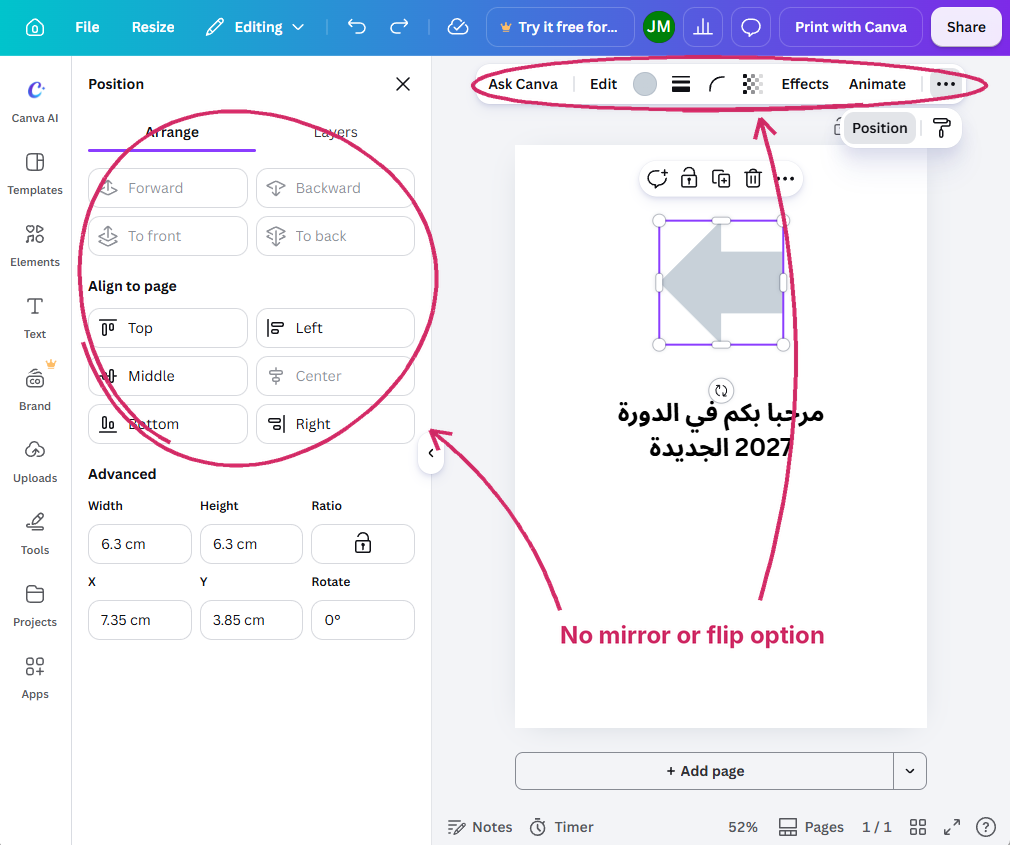
When an English layout goes into Arabic, the whole page usually needs to read from right to left, so images, columns and arrows move to the opposite side to follow the text. InDesign has a Reverse Layout command in the Layout menu for this. In Canva you can’t mirror a layout automatically or easily. You have to drag every object from one side of the page to the other by hand. You can select several images and flip them at once, but each one just flips where it sits, and text and grouped objects can’t be flipped at all. On a multi-page brochure, that adds up quickly, and it’s easy to miss something.
No scripts or custom shortcuts
In InDesign I can write or run a script to handle repetitive work, like flipping objects across a whole document, and I can set my own keyboard shortcuts for the commands I use most. Canva has no scripts panel, you can’t customize its shortcuts, and I couldn’t find anything in its Apps panel that mirrors a layout. Canva does have a developer kit for building apps that can edit a design, but that means building a full Canva app, which is a lot more work than writing a quick script to fix a file.
Fonts
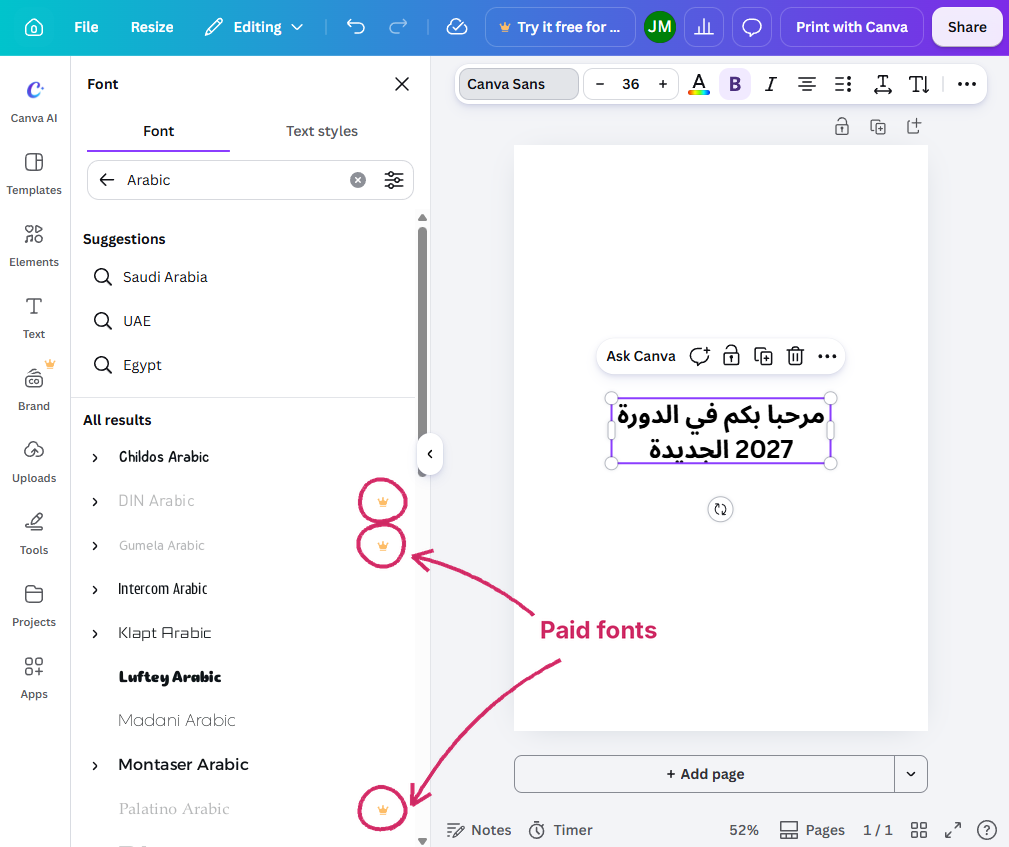
On Canva’s free plan you can only use the fonts in Canva’s own library, since uploading fonts is a paid feature, and many of the Arabic fonts in that library are marked as paid too. So if the English uses a particular typeface, you’re stuck with whatever free fonts Canva happens to have for Arabic, Thai, Hindi or whichever language you’re working in, and good luck finding one that matches the weight and feel of the English.
One font per sentence
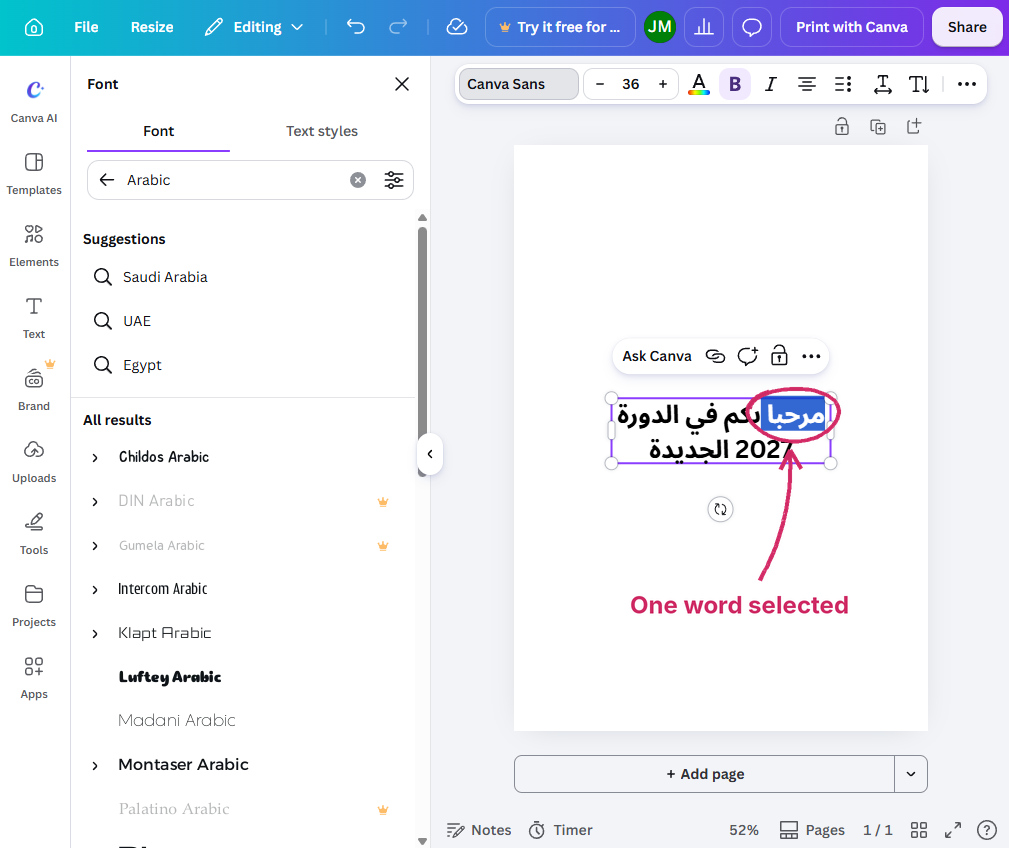
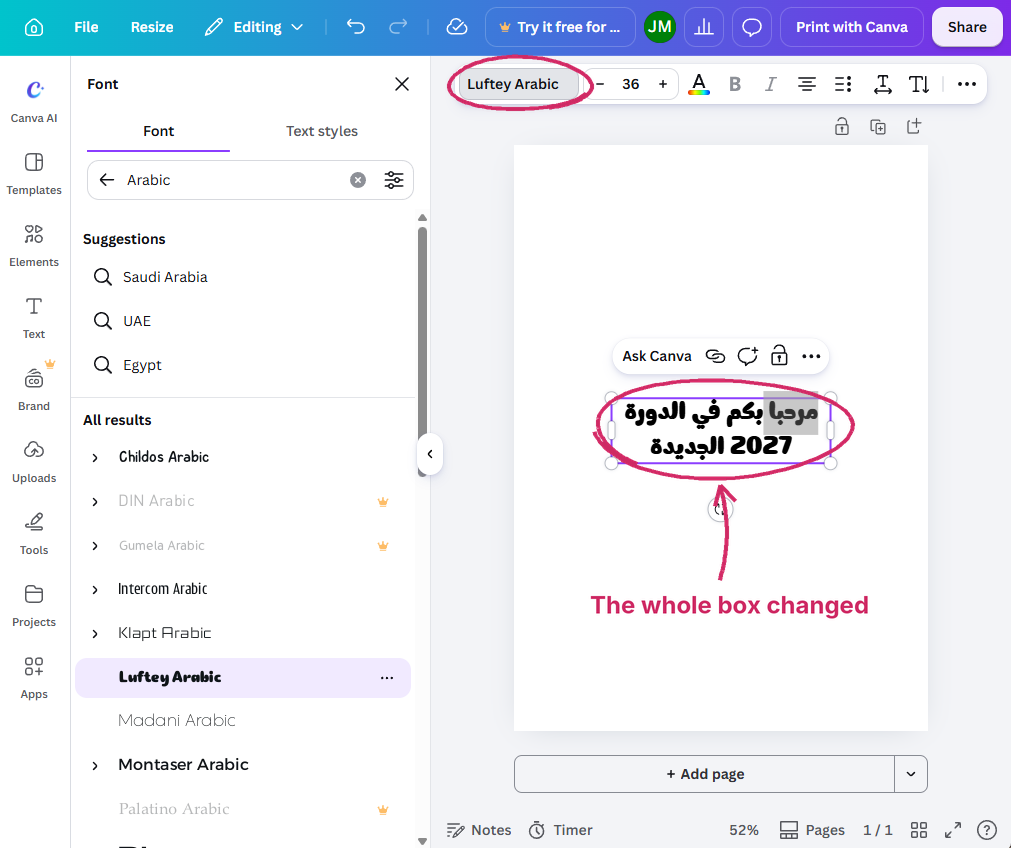
Canva lets you use more than one font in a text box, but not within the same sentence. If you select one word and pick a different font, the whole sentence changes. So if you want to set one word in a sentence in a different font for emphasis, or mix fonts in a one-line cover title, you have to make separate text boxes and line them up next to each other by hand. That’s already fiddly in English, and in a right to left language you’d have to rebuild and reposition every one of those boxes so they read in the right order, and do it again any time the text changes.
Language-specific text controls
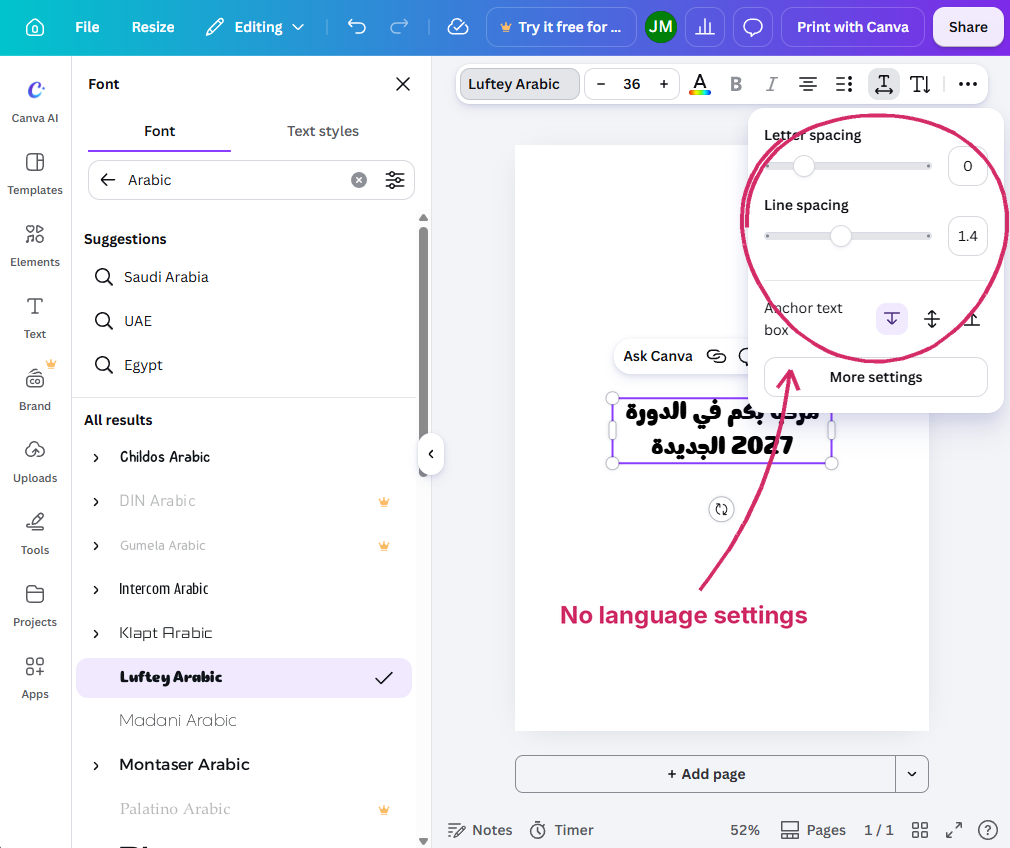
Every script has its own rules, and InDesign has settings for a lot of them. With Arabic, for example, it lets me control how text is justified, including kashida, which stretches the connections between letters instead of widening the spaces between words, and it lets me choose between Arabic and Western numerals. Canva’s text settings stop at letter spacing, line spacing, kerning and a ligatures switch, with nothing specific to any language.
Long documents and translation
Canva is made for one-page designs. There’s no way to link text boxes, so text can’t flow from one page to the next. Canva does have a handful of preset text styles like Heading and Body, but they don’t work like paragraph styles. When I gave two text boxes the Heading style and then changed one, the other stayed the same. There’s also no IDML export (there are paid third-party converters), so translated text usually ends up being copied and pasted in by hand, which is where mistakes creep in.
Exporting for print
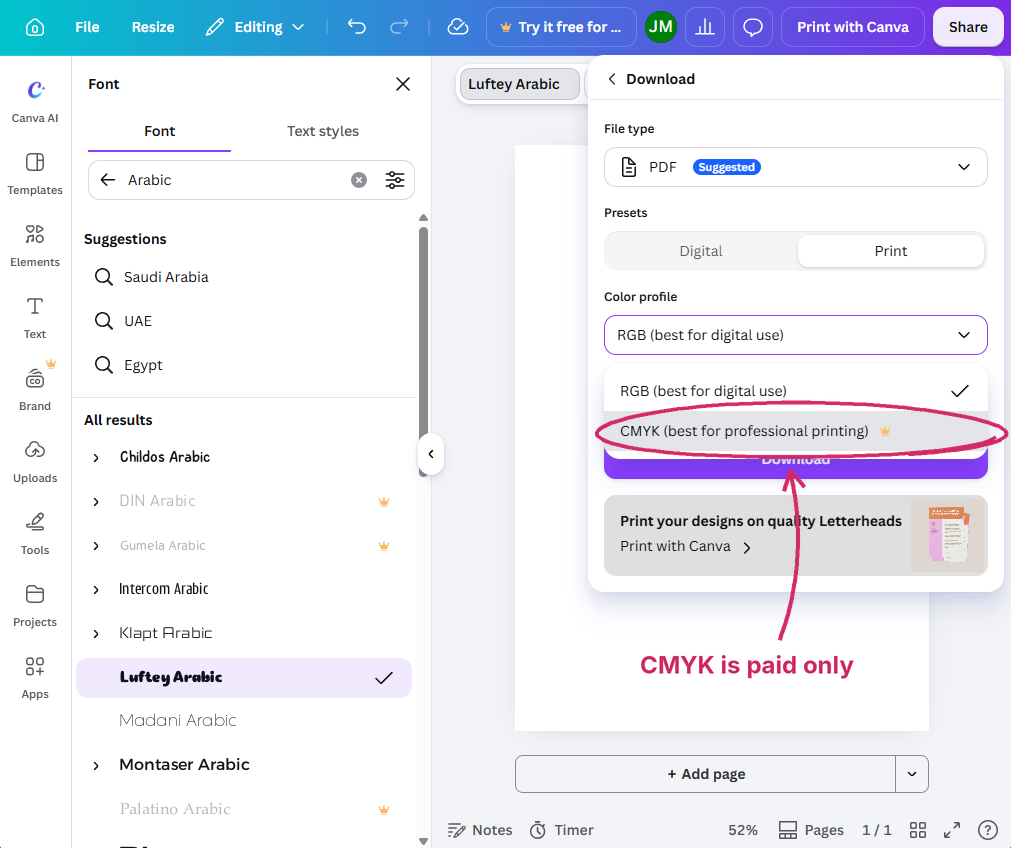
Canva’s PDF export has a Print preset with one switch for crop marks and bleed. You can’t set the bleed size or how far the marks sit from the trim. The color profile is either RGB or CMYK, and CMYK is only available on the paid plan. Even on the paid plan there’s just one CMYK option, so you can’t pick the profile your printer asks for. Most printers will take the file, but you don’t have much say in what you’re handing them.
What I’d do instead
Canva is easy to use and I understand why people like it, but I don’t recommend it for typesetting, and I don’t recommend it for design either. You never know when a design will need to be translated, and if it was built in Canva, every one of the problems above lands on whoever has to typeset the other languages. Needless to say, I still typeset Canva files regularly when that’s what the client asks for, but I always start by recommending that we convert the file to InDesign. Some documents just aren’t meant to be laid out in programs like Canva. If you have a Canva file that needs to go into another language, you can reach me at jaber@jaber.ca.
In a future post I’ll talk about a similar problem: laying out long publications in Illustrator instead of InDesign, and why things like text hyperlinks and tables of contents make that the wrong choice.